Skip to content

The Geek Worker

Random Computer Issues And Things That Fixed Them For Me

  • About this Website
  • Helpful Links

How To Change Primary Display in Windows

May 8, 2015 by geekworker

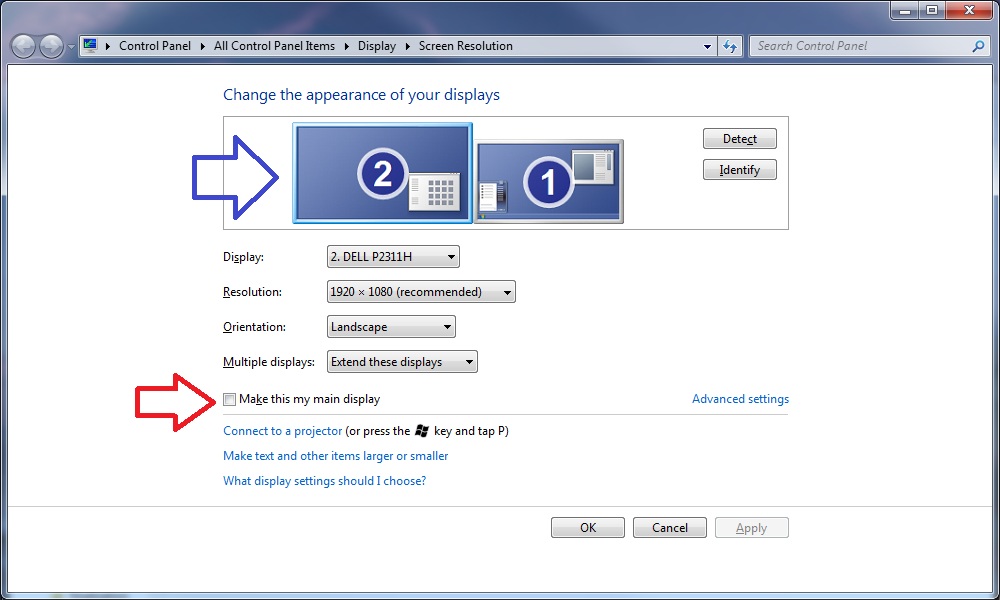
A colleague had her Windows task bar on the wrong screen, and wanted to move the task bar to the other monitor. Seems this is a little confusing in Windows. You find the option if you right click on the desktop, then click on screen resolution. You will get this dialog:

First, you must click on the screen you want your windows start bar to appear on (blue arrow). Only then can you select the option “Make this my main display” (red arrow). If you have the wrong screen selected, the line “This is currently your main display” will appear.

Obviously, this is only applicable if you extend your desktop over multiple screens.

Posted in ArticleTagged Windows
Previous story Keyboard Shotcut for changing Keyboard Layout in Windows Next story Synology Cloudstation Pauses and Does Not Sync

Leave a Reply Cancel reply

Your email address will not be published. Required fields are marked *

This site uses Akismet to reduce spam. Learn how your comment data is processed.

Recent Posts

  • Inkscape: “Document Properties” Window Not Showing Up
  • Synology Drive Client does not connect on Apple MacOS
  • “The iTunes Store is temporarily unavailable. Please try again later” when trying to subscribe to Podcast
  • “Access Denied” Errors with TortoiseSVN on Samba
  • Keyboard and Mouse Microstutters with a Dell Latitude Notebook

Recent Comments

  1. Bart on Gigabyte OSD_Sidekick: “Please check if your USB cable is connected”
  2. Jason on Sony Vegas and Sony Movie Studio: No Audio Tracks In mp4 video filefound
  3. DaReclama on OpenVPN: IP packet with unknown IP version seen
  4. vilva on Excel Formula to get Number of Days in a Month
  5. Michael (Micky) Avidan on Excel Formula to get Number of Days in a Month

© 2026 The Geek Worker. Proudly powered by WordPress.